
Google Search Console's URL Inspection tool lets you manually request indexing for a single URL. This guide walks through the four screens you'll see, the ~10-12 URLs per day submission cap, and how long indexing actually takes.
Manual indexing is worth the friction in three situations
I use URL Inspection in three cases, and basically nowhere else.
- A brand-new page I want Google to see before next week. New blog post, new pricing page, new landing page that paid traffic is already hitting.
- A page I just fixed where the fix is material. Title rewrite on a page stuck at position 11. Meta description added where there was none (see meta description best practices). Canonical corrected after a deploy (see the canonical URL guide).
- A page that should be indexed but isn't, according to the indexing helper in SEOLint or Search Console's Coverage report. Typically because internal links to it are thin, the page is too new to have been crawled, or Google tried once and the crawl failed.
Outside of those three, trust the natural crawl. Google recrawls active sites multiple times a day, and every manual submission costs you part of a daily quota you're better off spending on the pages that genuinely need the nudge.
1. Open URL Inspection in Google Search Console
Sign in to Google Search Console, pick the property for the site you're working on (either a Domain property like sc-domain:yoursite.com or a URL-prefix property; both behave the same for URL Inspection), and click into the search bar at the very top of the page. Pasting any URL into that bar opens URL Inspection automatically. You can also jump straight to search.google.com/search-console/inspect.
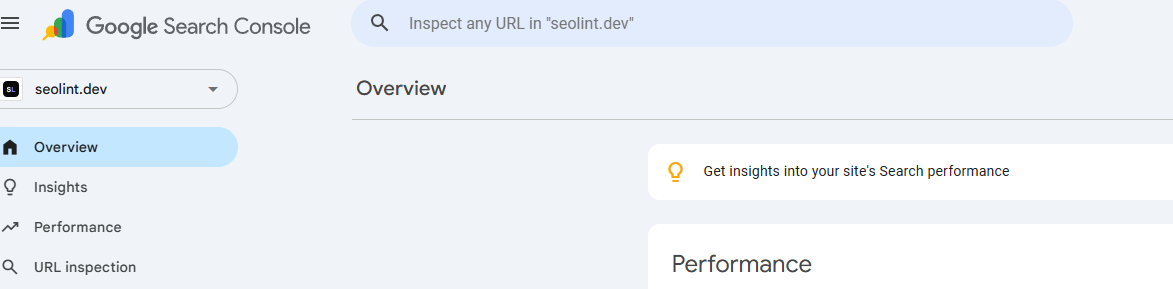
2. Paste the full https URL
Paste the complete URL including the https:// protocol, not just the path. Search Console needs the exact canonical form of your page, including any trailing slash your site serves. A URL that doesn't match your verified property (different subdomain, different protocol, www mismatch) returns an error instead of a result, so match what Google already knows about your site.
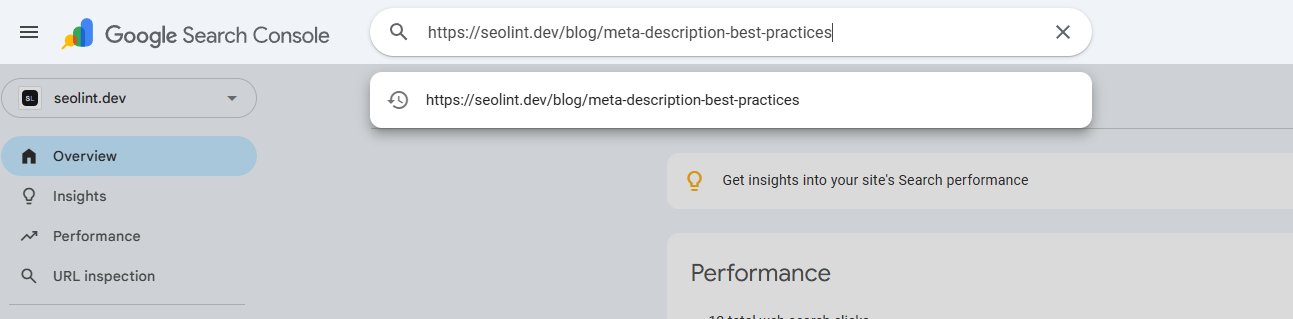
3. Read the coverage result
Search Console returns one of two headline states: 'URL is on Google' (indexed) or 'URL is not on Google' (not indexed). Under the headline, the Coverage panel tells you why. The useful distinction is between 'Discovered, currently not indexed' (Google knows about the page but hasn't crawled it yet), 'Crawled, currently not indexed' (Google crawled it and decided not to include it), and 'Blocked' (robots.txt or a noindex meta tag in the way). Each failure mode has a different fix, so read the sub-status before hitting the button.
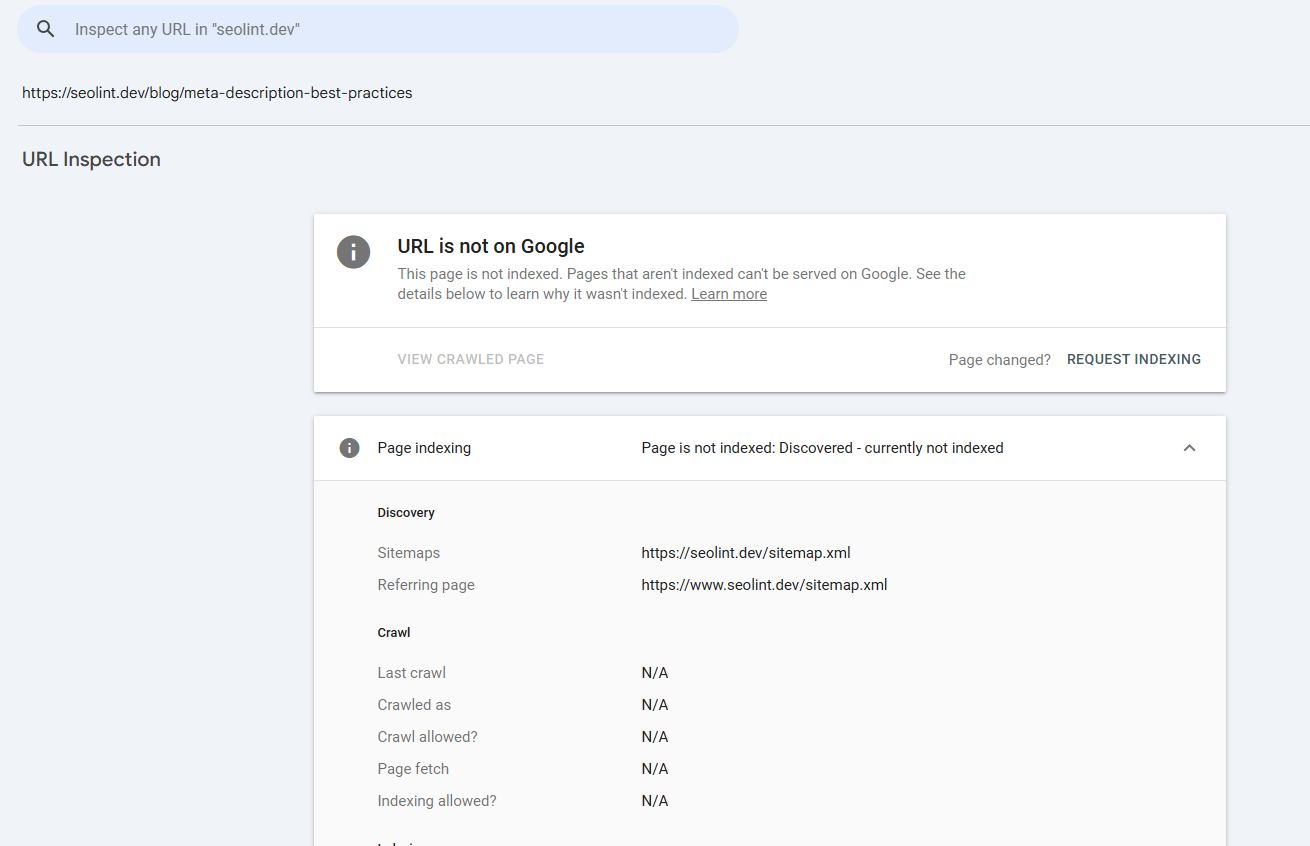
4. Click 'Request indexing' to submit the URL
The Request Indexing button lives on the right side of the result page. Clicking it kicks off a live URL test (Google fetches the page on the spot to confirm nothing's broken), then queues the page for a priority crawl. A progress loader runs for 30 to 60 seconds while the live test completes. Success state: 'Indexing requested' confirmation. If the live test fails (server error, 4xx, blocked resources, soft 404), fix the underlying issue before re-requesting. Re-submitting before the fix is landed just burns quota.
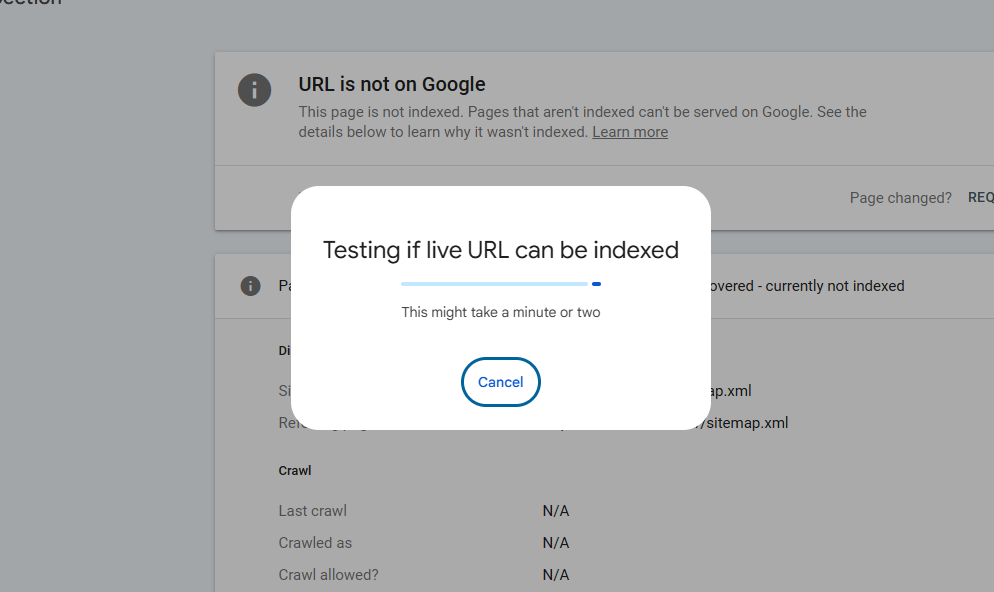
A manual request is a nudge, not a guarantee of indexing
Google queues your URL for a priority crawl, typically within a few hours. The crawl itself doesn't mean indexing though. Google still has to evaluate the page content against everything else it's already seen on the web. You can re-check the same URL in URL Inspection after 24 hours: if it now shows “URL is on Google” under the live test, you're in.
If a page keeps showing “Crawled, currently not indexed” even after a manual request, that's a signal the page itself is the problem, not the crawl schedule. Common causes: the content is too similar to another page on your site (duplicate or near-duplicate), there are no internal links pointing to it, the page is behind a thin canonical to a different URL, or Google already has stronger results for the primary keyword on the page. Official reference: URL Inspection tool documentation and the “Ask Google to recrawl” reference.
Budget your ~10-12 daily submissions for the pages that matter
Google doesn't publish an exact number, but in practice the manual submission endpoint caps around 10 to 12 URLs per property per day. Past that, submissions either silently queue or get rejected without feedback. A few habits that keep the budget productive:
- Work a prioritised list, not the sitemap alphabetically. Commercial pages, opportunity pages (position 11-15), and fresh posts before deep archive.
- Track what you've submittedacross days so you don't double-submit the same URL. Submitting twice doesn't speed indexing, just burns quota.
- Skip pages you don't want indexed(drafts, utility pages, tag archives). Mark them so they don't clutter tomorrow's list.
- Give each submission 24 hours before re-checking. Re-requesting in the same day has no effect beyond the first click.
The fourth habit is the one most people miss. Clicking “Request Indexing” three times on the same URL doesn't triple its priority, it just uses three slots of your daily budget.
Check index status programmatically with the URL Inspection API
The manual click-through flow is fine for a handful of URLs. When you have 40+ pages to audit, hit the URL Inspection API to check index status for each URL in seconds. Note the API is read-only. It tells you whether a URL is indexed, but it does not submit URLs for indexing. Use it to find which pages need the manual nudge, then work that list in Search Console.
# Check a URL's index status with the URL Inspection API.
# Requires an OAuth access token with https://www.googleapis.com/auth/webmasters scope.

curl -X POST \
  https://searchconsole.googleapis.com/v1/urlInspection/index:inspect \
  -H "Authorization: Bearer $ACCESS_TOKEN" \
  -H "Content-Type: application/json" \
  -d '{
    "inspectionUrl": "https://example.com/blog/post",
    "siteUrl": "sc-domain:example.com"
  }'

# Response (truncated):
# {
#   "inspectionResult": {
#     "indexStatusResult": {
#       "verdict": "PASS",
#       "coverageState": "Submitted and indexed",
#       "lastCrawlTime": "2026-04-15T09:12:00Z"
#     }
#   }
# }
Script this across your sitemap, filter for verdict != "PASS" or coverageStatematching “Crawled, currently not indexed”, and you have the exact list of URLs that deserve a daily manual submission.
Where SEOLint plugs into this workflow
The only painful part of URL Inspection is remembering which URLs you've already submitted and which ones still need attention. I built an indexing helper inside SEOLint that pulls your full sitemap, marks which pages Google already has indexed (from your Search Console data), ranks the unindexed pages so the highest-priority ones surface first, and gives each row a copy button for the full https URL plus a Submitted toggle. Tomorrow's list starts where you left off yesterday.
Same manual flow as this post. Same ~10-12/day cap. What changes is the five minutes you used to spend re-discovering which URLs still need the nudge.
Related reading
- The SEO checklist for developers (hub)
- Canonical URLs explained (and why wrong canonicals block indexing)
- Meta description best practices
- The SEO Agent: weekly scans + Search Console on every page
Official references: URL Inspection tool (developers.google.com) · Ask Google to recrawl (developers.google.com)
FAQ
How do I request indexing on Google Search Console?
Open Google Search Console, pick the verified property for your site, paste the full https URL into the search bar at the top (this opens URL Inspection), wait for the coverage result, then click the Request indexing button on the right side. Google runs a live test of the page and queues it for a priority crawl.
How many URLs can I submit to Google for indexing per day?
Google throttles URL Inspection manual submissions to roughly 10 to 12 URLs per property per day. The exact number is not published and can vary by account, but submissions past that threshold quietly get queued or ignored. Spread larger batches across multiple days.
Does requesting indexing guarantee my page will be indexed on Google?
No. A manual request moves the URL into Google's crawl queue sooner than it would arrive naturally, but Google still decides whether the page is worth indexing based on content quality, uniqueness, crawlability, and internal links. Thin or duplicate pages get crawled then skipped even after manual requests.
How long does it take for a page to get indexed on Google after requesting indexing?
Anywhere from a few hours to a few days. Established sites with healthy crawl stats usually see new pages indexed within 24 hours. New domains and low-authority sites can take a week or more. Re-check by running URL Inspection on the same URL the next day.
Should I request indexing every time I update a page?
Only for meaningful changes. Title rewrites, new sections, structural fixes, and canonical updates are worth a manual request. Typo fixes are not. Google's regular crawl catches small edits within days without any manual nudge, and you're better off saving daily quota for pages that actually need it.
Turn this into a 5-minute daily habit instead of a weekly scramble
SEOLint's indexing helper is the same manual flow as this post, with the tedious parts (which URLs are indexed, which need submitting, what you did yesterday) already tracked. 7-day free trial, $79/month, one site.